
How to Write Better Alt Text for SEO
A practical guide to writing image alt text that helps accessibility, improves image SEO, and avoids vague filler.
Sep 2026 · 3 min read
Alt text (alternative text) is a small detail that makes a big difference. It's the short description a screen reader announces, the text a browser shows when an image fails to load, and one of the strongest signals search engines have for understanding what an image actually shows.
Yet most alt text is either missing or vague. This guide keeps it practical: what good alt text does, the mistakes to avoid, and how to fix alt text across a whole site without checking every image by hand.
What good alt text actually does
Good alt text does three jobs at once, and the best descriptions do all three without any extra effort:
- Accessibility — people using screen readers hear a clear description instead of a filename or silence.
- Resilience — when an image doesn't load, the text still communicates what was there.
- Image SEO — search engines use it (alongside the file name and surrounding text) to index the image and rank it in image search.
The key idea is context. The same photo can deserve different alt text depending on why it's on the page.
Describe the image's purpose in context, not just its literal contents. A chart on a pricing page is about the numbers it shows, not "a bar chart."
Common alt text mistakes
Most weak alt text falls into a handful of patterns:
- Leaving the attribute off entirely, so the image is invisible to assistive tech.
- Using the file name (
IMG_2043.jpg) as the description. - Starting with "Image of…" — the screen reader already announces that it's an image.
- Keyword-stuffing instead of describing the picture.
- Writing
alt=""on an image that does carry meaning.
Decorative images are the exception
If an image is purely decorative — a divider, a background flourish, an icon next to text that already says the same thing — give it an empty alt attribute (alt=""). That tells screen readers to skip it instead of reading a distracting filename.
Examples: weak vs better alt text
Seeing the difference side by side is the fastest way to build the habit:
| Weak alt text | Better alt text |
|---|---|
coffee | A barista pouring steamed milk into a latte with a leaf pattern |
IMG_2043.jpg | A hiker looking out over a fog-filled valley at sunrise |
chart | Monthly revenue rising from $2k in January to $18k in June |
logo | IMSCRIB logo |
Notice that "better" isn't the same as "longer." A sentence is usually plenty; the goal is specific, not wordy.
When product context helps
For product and marketing pages, the surrounding context should shape the description. A screenshot isn't just "a dashboard" — it's showing a specific capability, and that's what belongs in the alt text.
For ecommerce-specific guidance, including product galleries and decorative store images, see the WooCommerce alt text guide.
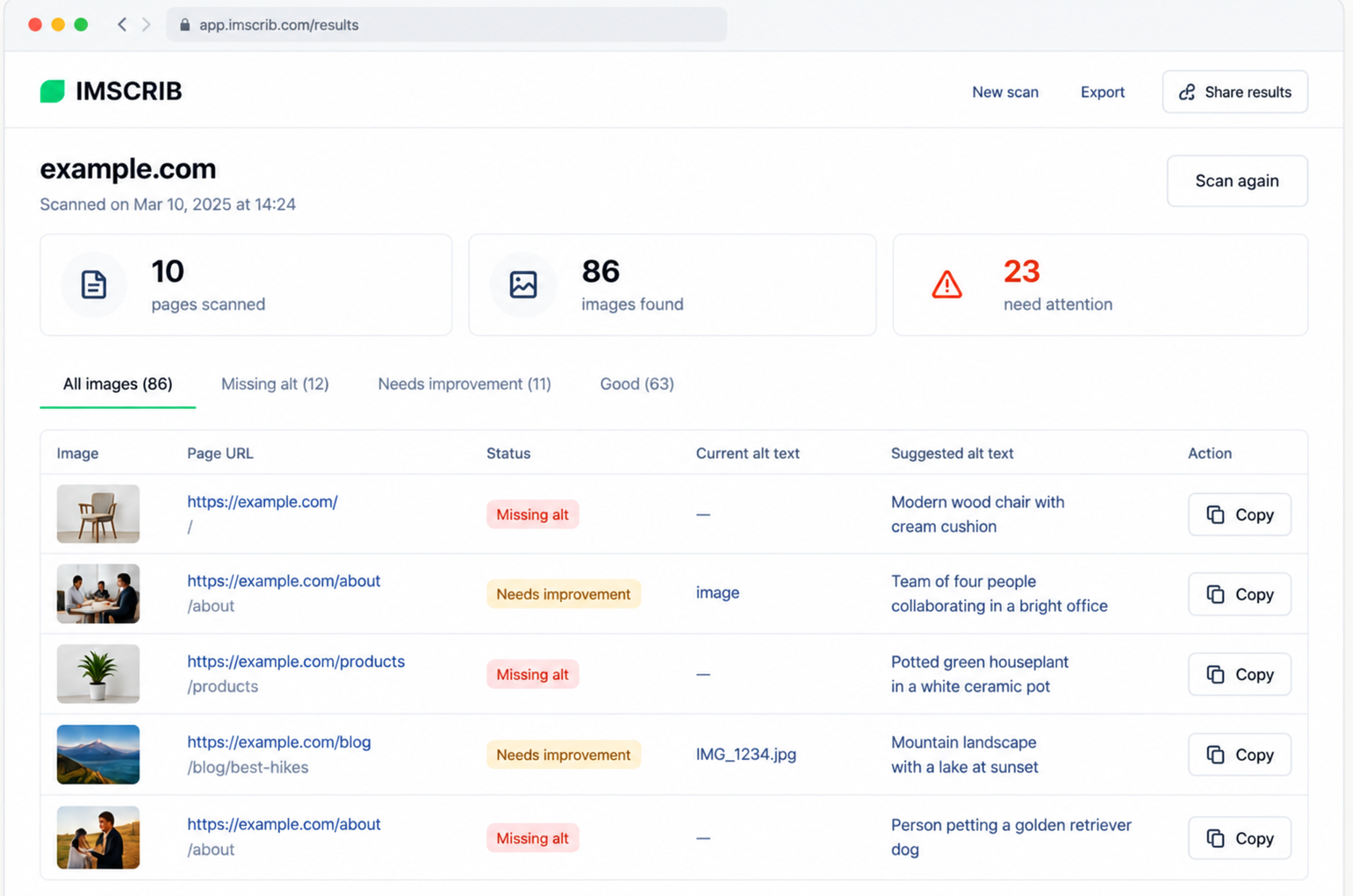
Written well, this alt text helps a screen reader user understand the screenshot and gives search engines an accurate, keyword-relevant description — without any stuffing.
How to audit alt text at scale
Writing one good description is easy. Doing it across hundreds of pages is where teams stall. A workable process:
If you run a WooCommerce store, the same process can be used across the product catalog; see how to bulk add alt text to WooCommerce product images.
- Crawl the site and collect every content image.
- Classify each one: missing, empty, weak, or fine as-is.
- Draft a suggested description for the ones that need work.
- Review the suggestions and copy the good ones into your CMS.
That last step matters — always review before publishing. Automated suggestions are a strong starting point, not a rubber stamp.
Running the whole loop by hand doesn't scale, which is exactly why IMSCRIB exists: it crawls your site, flags the images that need attention, and drafts a description for each one so you can review and ship in minutes.
Scan your WooCommerce store for content issues
Find weak image alt text and product descriptions, review suggested fixes, and focus only on content that needs attention.